
AI Component Creator
AI Component Creator helps you start a new prototype by generating UI from a text prompt or image.
When creating a new prototype:
- Choose Generate with AI in an empty Project, or
- Select Create with AI from the Start with import or template dropdown if your Project already contains prototypes.
This opens a modal where you can:
- Enter a prompt.
- Upload an image.
- Select a model.
- Select a prompt from Prompt Library
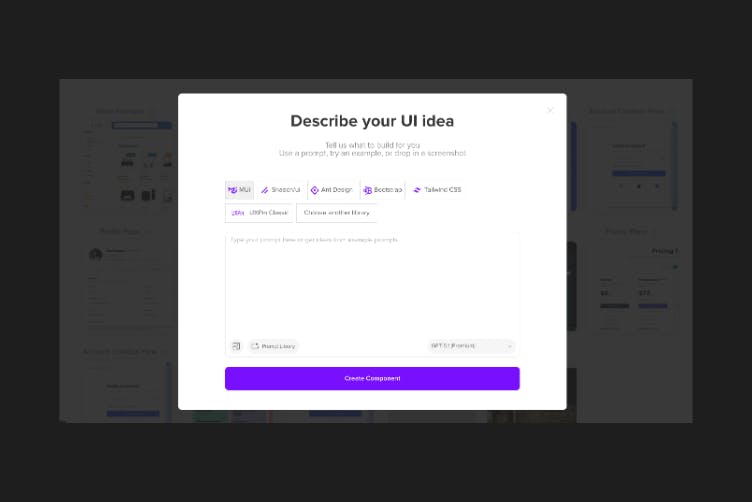
When you click Generate Component, UXPin opens a new prototype in the Editor. The UI is created in the background and appears on the canvas once it is ready.
AI Component Creator gives you a starting point. It does not support conversation and does not keep history of generated results. Once the layout appears in the Editor, you can:
- Adjust it manually.
- Convert elements into Components or Patterns.
- Refine the UI using Forge.
Tip
The generated UI is not added to Forge chat history. However, you can edit it in Forge after it opens in the Editor.
How it differs from Forge AI Assistant
AI Component Creator and Forge AI Assistant both help you generate UI, but they are designed for different stages of your work.
| AI Component Creator | Forge AI Assistant |
Used in Project view (Dashboard) | Used inside the Editor. |
Generates a new prototype from a prompt or image. | Generates and edits UI directly on the canvas. |
Generates UI from a single prompt. | Supports conversational workflow with follow-up prompts. |
Does not keep history. | Maintains chat history and context while you work. |
Best for quickly starting a prototype. | Best for iterating and refining UI in context. |